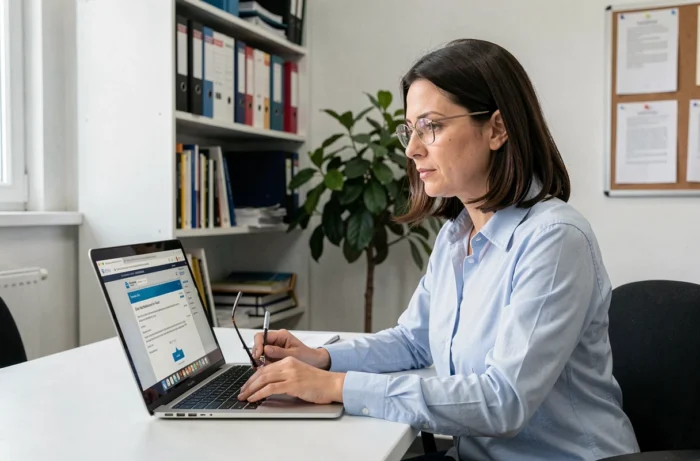
The academic messaging system of Lyon is based on the Convergence webmail, accessible from the academy’s portal (ac-lyon.fr) or, starting from the 2024-2025 school year, via the national portal messagerie.education.gouv.fr. This dual entry point changes the connection habits and troubleshooting procedures for all staff in the academy.
Dual connection portal: Convergence webmail and national portal
Until recently, the only access route was through the “ideal intranet” section of the ac-lyon.fr site. The gradual rollout of the national portal messagerie.education.gouv.fr changes the game: the same credentials work on both interfaces.
This coexistence has a direct practical benefit. When the local academic webmail is unavailable (maintenance, saturation), the national portal often remains operational, and vice versa. Testing both addresses before contacting support saves considerable time, especially during class councils or exams.
For those discovering the complete procedure, a detailed guide allows you to use the academic messaging system of Lyon step by step, from creating the identifier to the first successful login.
Academic identifier and password: training and modification
The identifier follows a simple rule: the first letter of the first name, attached to the last name, all in lowercase and without accents. For Laura Jolie, this results in “ljolie”. For Pierre-Henri Martin, “pmartin” (the hyphen and the second name are ignored).
The default password corresponds to the NUMEN, the identification number assigned by the ministry. This NUMEN can be obtained from the relevant managing service, for example, the DEEP for private school teachers ([email protected]).
Changing this password upon first login is not just a comfort recommendation. A NUMEN sometimes circulates on shared administrative documents, and keeping it as a password exposes the inbox to unauthorized access. When changing, opting for a long passphrase (four unrelated words) offers a good compromise between security and memorization.
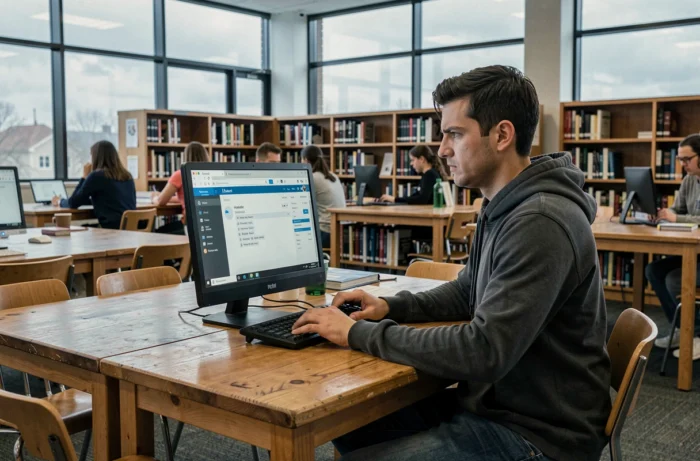
Setting up a mail client on smartphone or computer with the correct encryption settings
Checking messages only via the web browser works, but synchronizing the messaging on a dedicated client (Outlook, Thunderbird, Mail on iOS) offers smoother daily access. The technical settings have recently been standardized, and unencrypted connections are now blocked by default.
Specifically, an old unsecured IMAP setting will no longer work at all. The settings to apply are strict:
- Receiving: protocol IMAP, port 993, SSL/TLS encryption. The incoming server is the one indicated by the academy (usually imap.ac-lyon.fr or its Convergence equivalent).
- Sending: SMTP or SMTPS protocol, port 465 with SSL/TLS or port 587 with STARTTLS. The outgoing server follows the same naming logic.
- Authentication: full academic identifier (firstname.lastname or short format as applicable) and modified password. Check “the server requires authentication” for SMTP.
On iOS, the configuration is done in Settings > Mail > Accounts > Add Account > Other. On Android, the Gmail app or the native client offers an IMAP account addition. In both cases, forcing the security type to SSL/TLS avoids recurring connection errors.
Common errors after a password change
Changing your password on the webmail does not automatically update the mail client on the phone. It attempts to connect with the old password, fails, and may temporarily block the account after several attempts. The solution is to update the password in the account settings on each device immediately after the online change.
Organizing your academic inbox for daily use
The volume of messages received on an academic address can be surprising: rectoral circulars, service notes, exchanges with school life, training invitations. Without sorting, the inbox becomes unusable within a few weeks.
The Convergence webmail allows you to create folders and automatic sorting filters. A filter based on the sender (for example, all addresses in @ac-lyon.fr containing “rectorat”) redirects official circulars to a dedicated folder. A second filter can isolate messages related to training and pedagogical support.
Three folders are sufficient to cover the majority of uses: one folder for institutional communications, one for exchanges related to the establishment, and a final one for personal messages between colleagues. Adding additional folders by project or period (exams, orientation) refines the classification without complicating it.
Agenda and tools integrated into the portal
The academic portal also provides access to a shared calendar and collaborative tools (storage spaces, institutional address books). Synchronizing the academic calendar with that of the smartphone is done via the CalDAV protocol, available in the portal settings. This synchronization avoids juggling between two distinct calendars for pedagogical meetings and administrative deadlines.
Assistance and troubleshooting for the academic messaging system of Lyon
In case of a connection blockage, two contacts to know: the single desk by phone at 04.72.80.64.88, and the address [email protected]. Before reaching out, checking that the problem does not stem from an expired password or a browser that has cached old credentials resolves the majority of situations.
If the local academic webmail displays a server error, testing the connection via messagerie.education.gouv.fr helps determine whether the problem is specific to the Lyon infrastructure or broader. Testing the national portal before calling support reduces resolution time and eases the technical support load.
The transition to mandatory encryption and the dual national entry point permanently changes habits. Updating mail client settings once, bookmarking both portal addresses, and keeping the single desk number handy cover the essential daily needs.